How a Simple Customization Can Improve Security, Build Trust, and Create a More Professional User Experience
When people hear the word branding, they usually think about logos on pens, mugs, or mouse mats. But one place that’s often overlooked is the Microsoft 365 login page.
At first glance, customizing the sign-in experience might seem like a cosmetic change. In reality, it can provide something far more valuable:
Trust.
And in today’s world, trust is an important part of security.
Why Branding Matters
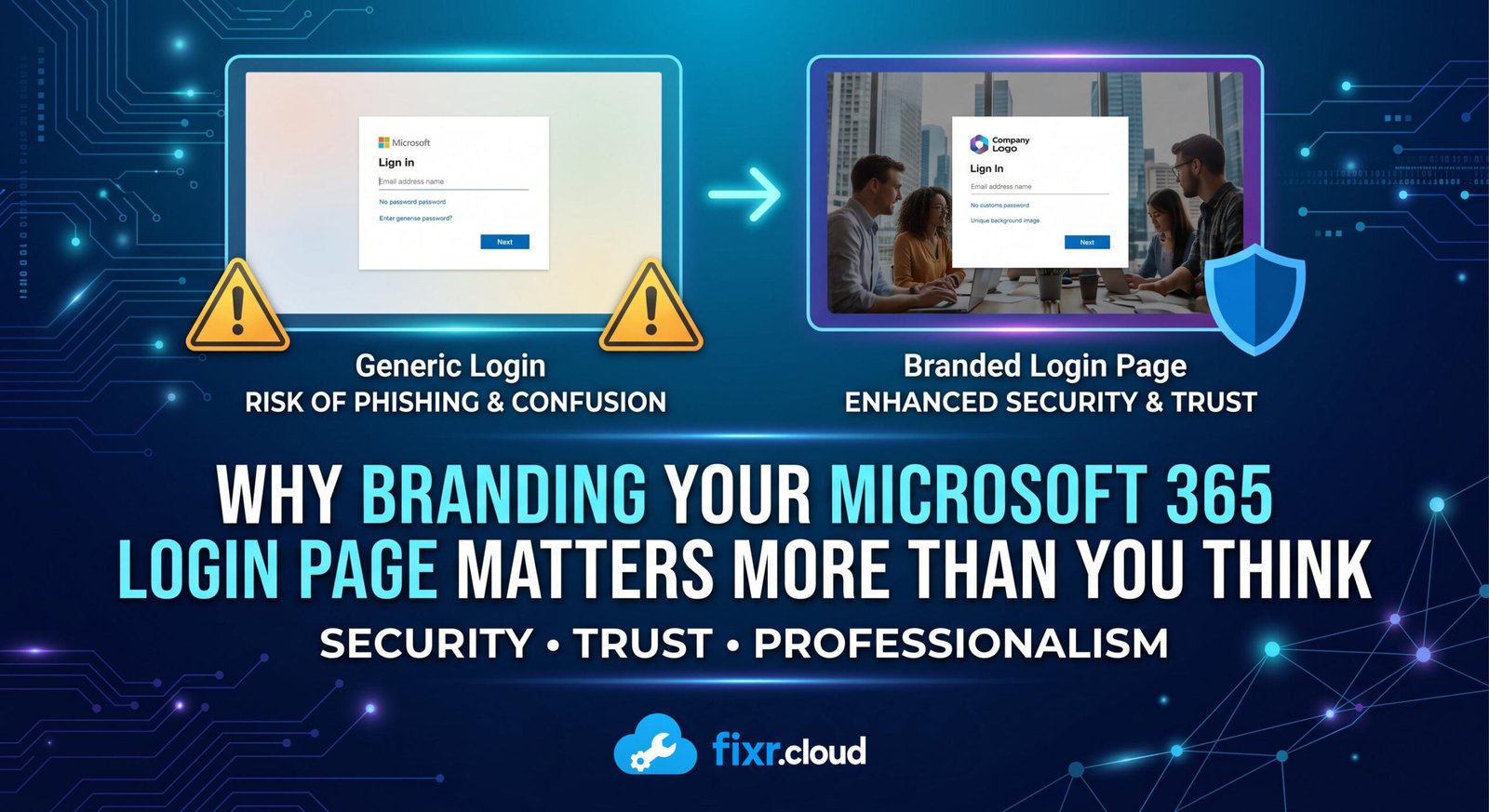
By default, every Microsoft 365 login page looks almost identical. While that consistency is convenient, it also creates an opportunity for attackers.
Phishing pages are designed to imitate Microsoft’s sign-in experience. Since users see the same generic page every day, they often don’t notice when they’re entering their credentials into a fake website.
Custom branding helps change that.
By adding:
- Your company logo
- A background image
- Brand colours
- A custom sign-in message
you create a login experience that employees recognize immediately.
If users suddenly encounter an unfamiliar or generic-looking sign-in page, they are much more likely to stop and question it before entering their credentials.
It’s a simple change, but one that adds another layer of awareness against phishing attacks.
Security Benefits Beyond Technology
Cybersecurity isn’t always about deploying another tool or enabling another policy.
Sometimes, it’s about helping users recognize what “normal” looks like.
A branded login page creates:
✔ A familiar sign-in experience
✔ Greater confidence for users
✔ Increased awareness of phishing attempts
✔ Additional visual validation
While branding won’t stop phishing on its own, it helps users identify suspicious pages more quickly—and that awareness matters.
Professionalism Matters Too
Security isn’t the only advantage.
A branded sign-in page also creates a much more polished experience.
Whether it’s:
- Employees
- Contractors
- Guests
- External partners
everyone accessing your tenant sees a login page that reflects your organization rather than a generic Microsoft screen.
It’s a small detail, but details contribute to professionalism.
And the best part?
If you’re using a paid Microsoft 365 subscription, the feature is already included.
How to Configure Custom Branding in Microsoft 365
Step 1: Open the Microsoft Entra Admin Center
Navigate to:
Identity → User Experiences → Company Branding
From there, you can customize the default sign-in experience.
Step 2: Prepare Your Images
You don’t need to be a graphic designer.
Tools such as Microsoft Copilot or ChatGPT can help generate:
- Background images
- Icons
- Brand assets
- Colour ideas
I generally recommend:
- A clear company logo
- A clean background image relevant to your business
- Consistent corporate colours
Keeping the design simple usually provides the best experience.
Step 3: Customize the Layout
You can choose:
- Full-screen or partial background images
- Header visibility
- Footer links
- Privacy policy URLs
- Terms of use links
These small touches help reinforce legitimacy.
Step 4: Add a Custom Sign-In Message
A short message further improves user confidence.
For example:
Welcome to Contoso Ltd. Authorized users only.
This gives users another visual indicator that they’re signing into the correct environment.
Step 5: Save and Test
Once everything is configured, sign out and test the experience yourself.
Verify:
- Logo placement
- Background image quality
- Mobile responsiveness
- Links and text
- Overall appearance
User experience matters just as much as functionality.
Final Thoughts
Branding your Microsoft 365 login page isn’t about vanity.
It’s about creating familiarity.
It’s about helping users recognize legitimate sign-in experiences.
It’s about strengthening your organization’s security posture while presenting a more professional image.
And considering that the feature is included with Microsoft 365, it’s one of the easiest improvements you can make.
After all, logos on mugs and mouse mats are optional.
Logos on your Microsoft 365 login page? I’d argue they’re essential.
Fixr.Cloud – Smarter IT, Simplified.