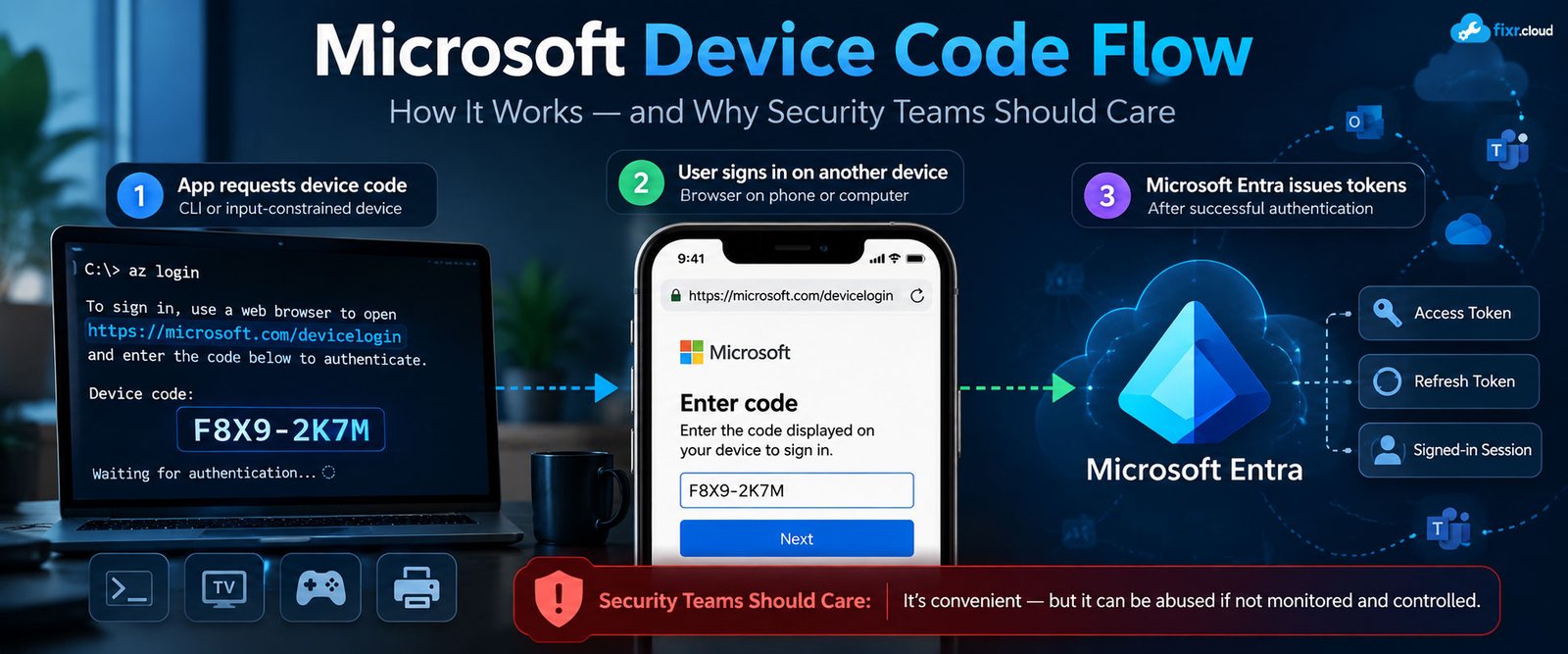
Have you ever used a CLI tool and received something like:
“To sign in, open https://microsoft.com/devicelogin and enter this code.”
That’s Device Code Flow.
It was designed for applications and devices that don’t have a convenient browser or keyboard for interactive authentication. But there’s an important security side to this flow that every Microsoft 365 administrator should understand.
Let’s break it down.
What Is Device Code Flow?
Device Code Flow is an OAuth 2.0 authentication flow that allows a user to authenticate on one device while the application runs on another.
Instead of the application opening a browser itself, it displays:
- A verification URL
- A short user code
The user opens the URL on another device—usually a phone or computer—enters the code, and completes normal Microsoft Entra authentication, including MFA or consent when required.
The application then receives the resulting tokens through the back channel.
Microsoft documents Device Code Flow for scenarios such as input-constrained devices, IoT devices, printers, and command-line applications. It is also supported by MSAL for desktop and other public-client scenarios.
Why Was Device Code Flow Created?
Imagine a smart TV.
It doesn’t have a convenient keyboard.
Or an IoT device with only a small display.
Or a command-line application running in a terminal where launching an interactive browser isn’t practical.
Trying to type a username, password, and MFA information directly on that device would be a terrible user experience.
Device Code Flow solves the problem:
Application/device
↓
Displays a code
↓
User’s phone or computer
↓
Microsoft sign-in
↓
MFA / Conditional Access / Consent
↓
Microsoft Entra
↓
Tokens become available to the application
The authentication happens where the user has a proper browser and input method.
How Device Code Flow Works
The process is relatively simple.
1. Application requests a device code
The application contacts Microsoft Entra’s device authorization endpoint and requests a device code.
Microsoft returns information including:
device_codeuser_code- Verification URI
- Expiration information
- Polling interval
Microsoft’s documented default expiration for the device authorization request is 15 minutes.
2. Application displays the instructions
The application tells the user something similar to:
Go to microsoft.com/devicelogin and enter this code.
3. User authenticates elsewhere
The user opens the verification URL on another device.
They then complete the normal Microsoft Entra authentication process.
Depending on the tenant and application, this can include:
- Password
- MFA
- Conditional Access
- Consent
- Authentication methods required by policy
4. Application polls Microsoft Entra
While the user is authenticating, the original application polls the token endpoint using the device code.
It doesn’t receive the token immediately.
It waits for Microsoft Entra to confirm that authentication has completed.
5. Microsoft Entra issues tokens
After successful authentication, the application can receive the requested tokens and use the access token to call the protected API.
The Important Part: It’s a User Authentication Flow
This is where Device Code Flow is sometimes misunderstood.
Device Code Flow does not mean:
“The device itself becomes authenticated.”
The user still authenticates with Microsoft Entra.
The application then receives tokens representing that authenticated user’s authorization to access the requested resources.
That makes Device Code Flow fundamentally different from Client Credentials Flow, where an application authenticates as itself without a user.
Device Code Flow vs Client Credentials
| Device Code Flow | Client Credentials | |
|---|---|---|
| User required | ✅ Yes | ❌ No |
| Application acts as | User | Application |
| Typical use | CLI / input-constrained device | Daemon / automation |
| User MFA possible | ✅ Yes | ❌ No interactive MFA |
| Typical permissions | Delegated | Application |
| Public client | ✅ | ❌ Confidential client |
A simple rule:
Device Code Flow = user is involved.
Client Credentials = application acts on its own.
How Do You Enable Device Code Flow?
For an application you control, Device Code Flow is intended for public client applications.
In the Microsoft Entra admin center:
Entra ID → App registrations → Your application → Authentication
Under Advanced settings, enable:
Allow public client flows → Yes
Microsoft’s current guidance says public client flows should remain disabled by default unless the application actually requires a public-client scenario such as Device Code Flow.
Then your application needs to be implemented using a supported authentication library such as MSAL.
Microsoft recommends using MSAL rather than manually implementing the protocol where possible.
⚠️ Here’s Where Security Gets Interesting
Device Code Flow is convenient.
But convenience creates a security problem.
An attacker can start a Device Code Flow request and obtain a legitimate Microsoft sign-in code.
They can then send that code to a victim with a message such as:
“Please complete this Microsoft verification.”
The victim opens the real Microsoft sign-in page, enters the code, authenticates, and potentially completes MFA.
The attacker can then receive tokens associated with the authentication.
This is why Microsoft currently classifies Device Code Flow as a high-risk authentication flow and recommends blocking it wherever possible.
The important lesson is:
The Microsoft sign-in page can be completely legitimate while the authentication request itself is malicious.
That’s what makes this attack particularly dangerous.
How Should Administrators Protect Device Code Flow?
If your organization doesn’t require Device Code Flow, Microsoft recommends blocking it with Conditional Access.
The Conditional Access configuration is under:
Entra ID → Conditional Access → Policies
Create a policy that targets the appropriate users/resources and under:
Conditions → Authentication Flows
select:
Device code flow
Then configure the access control to:
Block access
Microsoft recommends validating the impact using Report-only mode before enforcing the policy.
Don’t Blindly Block It
This is important.
Before blocking Device Code Flow everywhere, determine whether your environment actually depends on it.
Some Microsoft Teams devices and other legitimate input-constrained scenarios can use Device Code Flow. Microsoft provides specific guidance for creating controlled exceptions rather than leaving the flow broadly available.
A practical approach is:
Discover → Audit → Report-only → Validate → Block → Exception only where required
Don’t create a permanent broad exception simply because one application needs Device Code Flow.
Device Code Flow vs Authorization Code Flow
Another common question:
Why not just use Authorization Code Flow?
Authorization Code Flow is generally preferred for applications that can use an interactive browser-based authentication experience, particularly with PKCE.
Device Code Flow exists for scenarios where the application or device cannot conveniently provide that experience locally.
So the decision isn’t:
“Which flow is newer?”
It’s:
“What kind of application am I authenticating?”
Microsoft recommends Authorization Code Flow with PKCE for applicable web, SPA, desktop, and mobile scenarios, while Device Code Flow remains appropriate for input-constrained devices and CLI-style applications.
Common Mistakes
❌ Treating Device Code Flow as inherently safe because MFA is enabled
MFA doesn’t automatically make a malicious Device Code Flow request legitimate.
❌ Blocking it without checking dependencies
You may break legitimate devices or tools that rely on it.
❌ Leaving it enabled everywhere because “we might need it someday”
If you don’t need the flow, Microsoft’s current security guidance is to block it.
❌ Assuming Device Code Flow is the same as Device Registration
They’re different concepts. Device Code Flow is an OAuth authentication flow; it isn’t simply a method for registering a Windows device.
💡 Fixr.Cloud Insight
Device Code Flow is a good example of how a legitimate authentication mechanism can become a security risk when it’s available outside its intended use case.
I wouldn’t look at Device Code Flow as simply “good” or “bad.”
I’d ask:
Where is it being used, who is using it, and why is it required?
If the answer is a legitimate input-constrained device, control it carefully.
If nobody needs it, blocking it removes an unnecessary authentication path from the tenant.
That’s a much better security decision than blindly enabling or disabling features.
📌 Quick Recap
- Device Code Flow allows authentication on one device while the application runs on another.
- It is designed primarily for input-constrained devices and CLI-style applications.
- The user still performs normal Microsoft Entra authentication.
- The application receives tokens after successful authentication.
- Device Code Flow is a high-risk authentication flow because it can be abused in phishing attacks.
- Microsoft recommends blocking it wherever possible and creating narrowly scoped exceptions only when legitimate use requires it.
🎯 Bottom Line
Device Code Flow solves a real usability problem—but it also creates a real security risk.
If your organization needs it, control it.
If your organization doesn’t need it, block it.
The goal isn’t to eliminate useful authentication methods.
It’s to eliminate authentication paths that your organization has no reason to expose.
Fixr.Cloud – Smarter IT, Simplified.