One of the easiest ways to break a Microsoft Graph script is by choosing the wrong permission type.
You’ve granted User.Read.All, clicked Grant admin consent, but your script still fails.
In many cases, the problem isn’t the permission—it’s whether you selected Delegated or Application permission.
Understanding this difference will save you hours of troubleshooting.
Why Does It Matter?
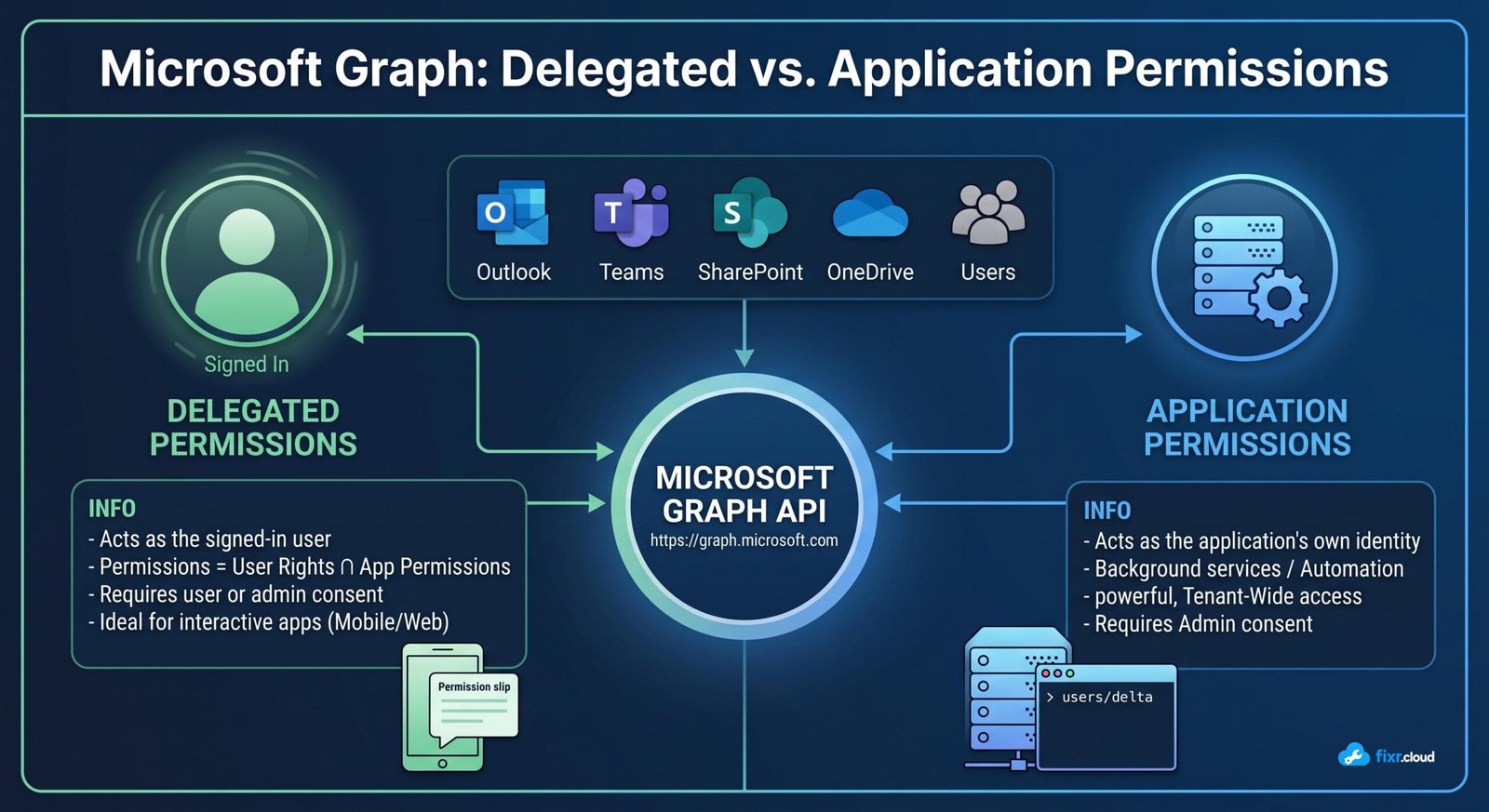
Microsoft Graph supports two permission models:
- Delegated Permissions – The application acts on behalf of a signed-in user.
- Application Permissions – The application acts as itself, without any user signed in.
Choosing the wrong one can cause authentication failures, access denied errors, or unexpected permission prompts.
Delegated Permissions
Delegated permissions require a user to sign in.
The application receives only the permissions that both the signed-in user and the application are allowed to have.
Think of it like this:
You’re borrowing someone’s access badge. You can only go where they are allowed to go.
Typical use cases:
- Microsoft Teams apps
- Outlook add-ins
- User-driven web applications
- Interactive PowerShell sessions
Application Permissions
Application permissions don’t require a user to sign in.
The application authenticates using a Client Secret or Certificate and operates independently.
Think of it as a service account designed for applications.
Typical use cases:
- Scheduled PowerShell automation
- Azure Automation Runbooks
- Background synchronization jobs
- Enterprise integrations
Real-World Example
Suppose you have a nightly PowerShell script that creates Microsoft 365 users automatically.
Since no administrator is signing in every night, Delegated Permissions won’t work.
Instead, you should:
- Register an application.
- Add Application Permissions in Microsoft Graph.
- Grant Admin Consent.
- Authenticate using a Client Secret or Certificate.
Now the script can run unattended.
Common Mistakes
- Using Delegated Permissions for unattended automation.
- Forgetting to grant Admin Consent for Application Permissions.
- Assuming Application Permissions always have more access—they only have what you’ve explicitly granted.
Best Practices
- Use Delegated Permissions when a user is actively interacting with the application.
- Use Application Permissions for automation and background services.
- Grant only the minimum permissions required (Principle of Least Privilege).
💡 Fixr.Cloud Insight
Whenever a Microsoft Graph script fails, one of the first things I verify isn’t the code—it’s the permission type.
I’ve seen many automation projects fail simply because Delegated Permissions were selected for a task that required Application Permissions.
Before troubleshooting anything else, ask yourself:
“Will a user be signed in when this application runs?”
The answer usually tells you which permission model you need.
🎯 Bottom Line
If a user is present, use Delegated Permissions.
If the application runs without user interaction, use Application Permissions.
Remembering this simple rule will solve many Microsoft Graph authentication issues.
Fixr.Cloud – Smarter IT, Simplified.