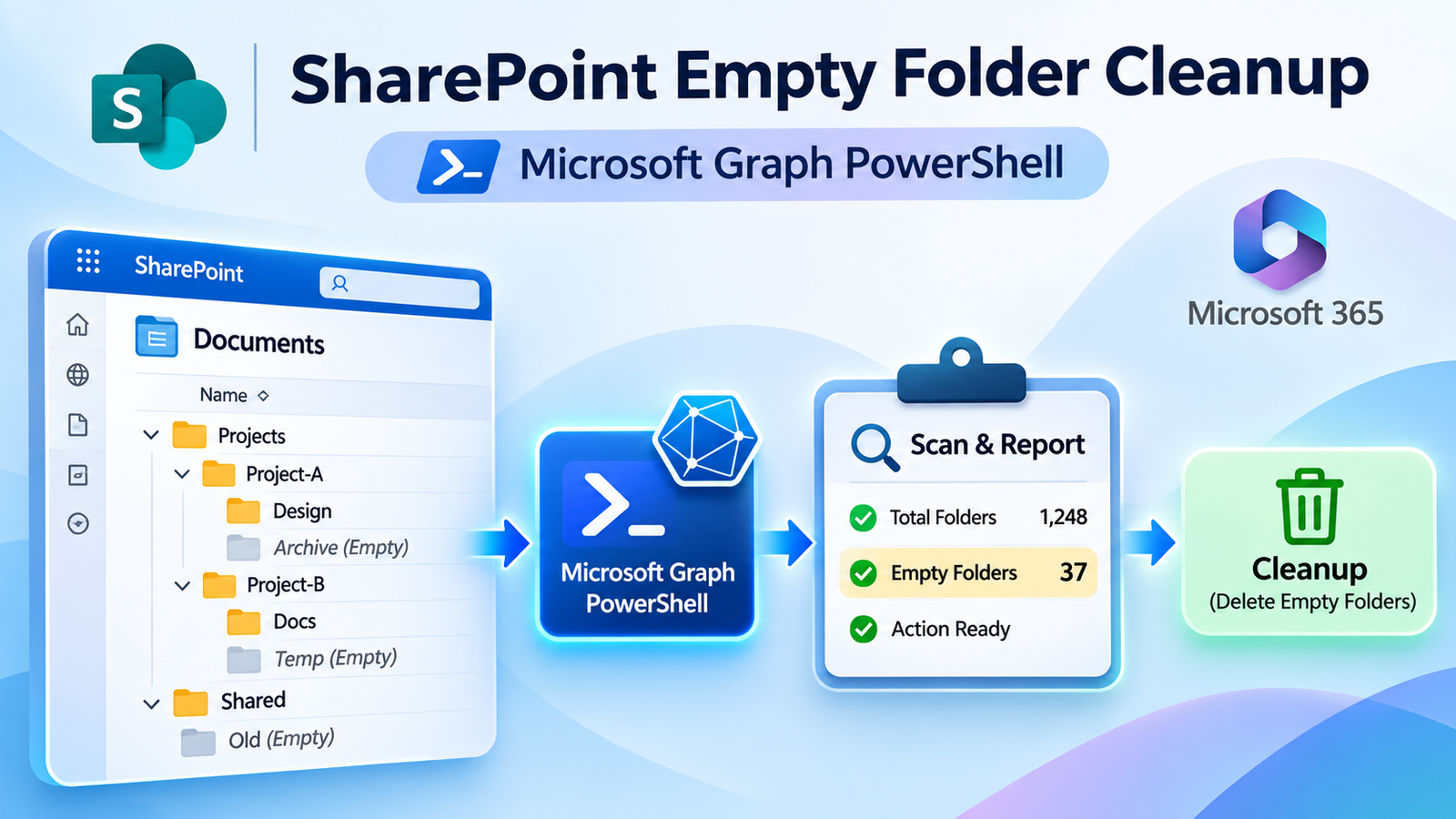
SharePoint document libraries can accumulate empty folders over time, especially in large sites with complex directory structures. Manually identifying and removing them can be time-consuming and error-prone.
To simplify this task, I’ve developed a two-step Microsoft Graph PowerShell approach that scans a specified SharePoint site or document library, identifies empty folders—including nested child folders—and generates a report before deletion.
How the Script Works
The process is divided into two separate scripts:
=========== Connect Graph PowerShell module ===========

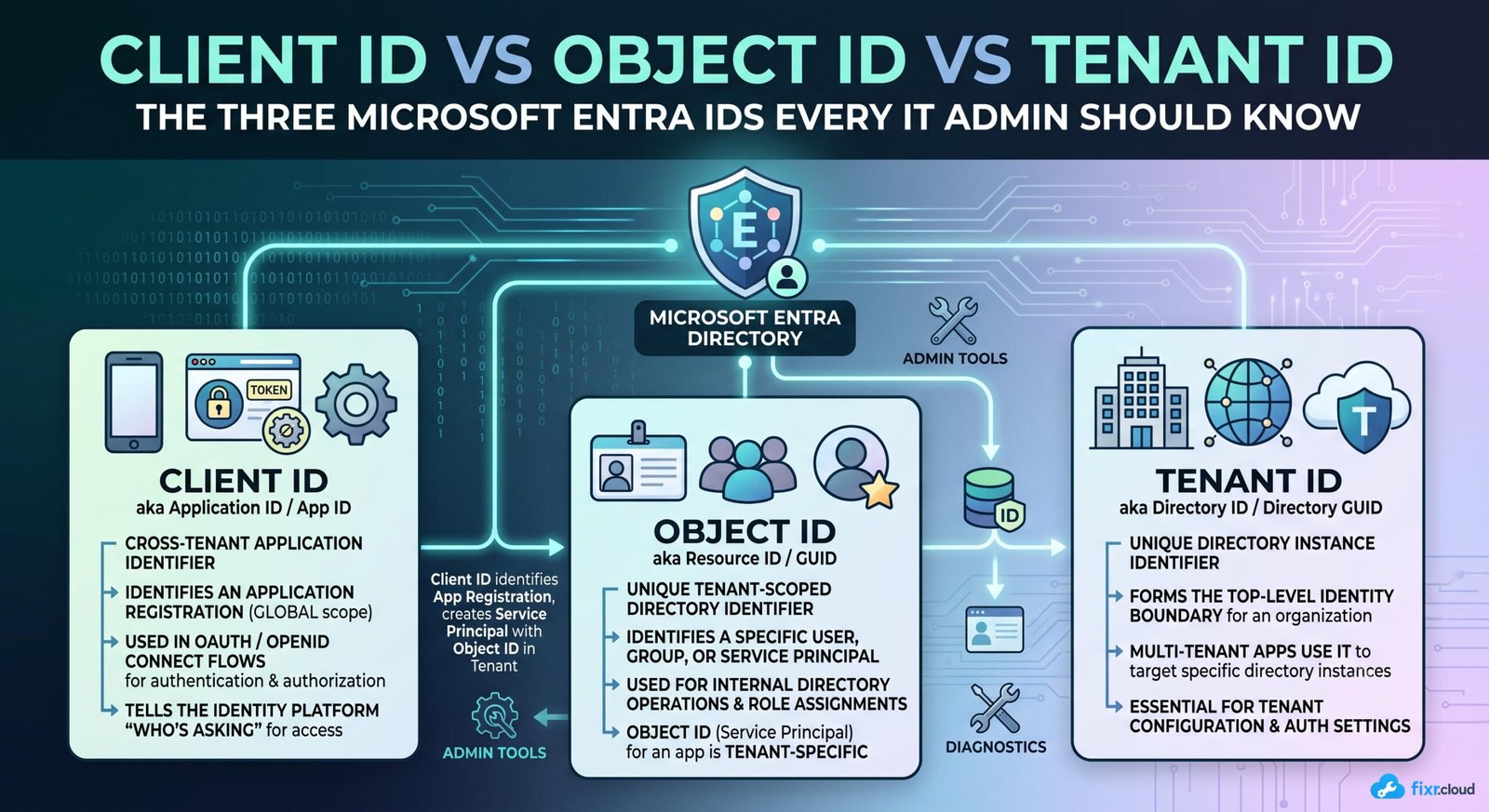
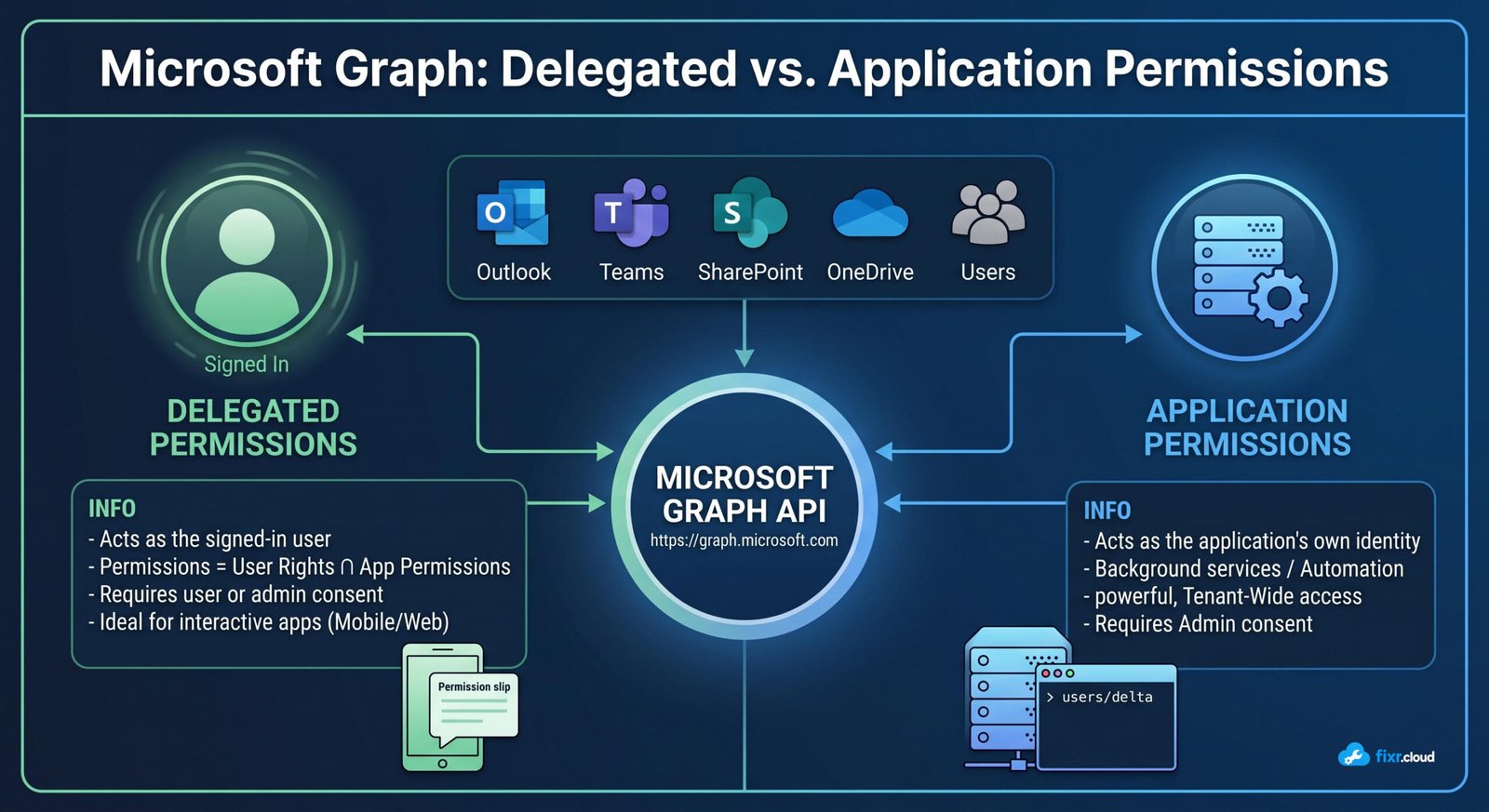
Connect-MgGraph -Scopes "Sites.Read.All" -NoWelcome
Get-MgContext | Format-List Account, TenantId, AuthType, Scopes
1. Scan and Generate a Report
The first script scans the specified SharePoint scope and identifies empty folders, including nested directories.
It generates a report containing the folders identified during the scan. This allows you to review the results before making any changes.
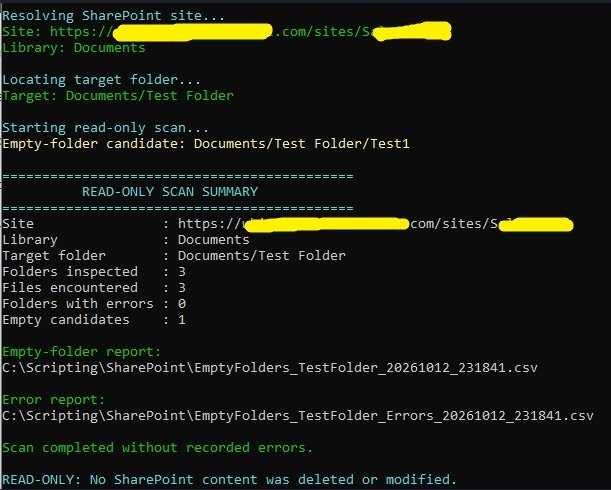
2. Review and Delete
The second script uses the scan report to identify and delete the listed folders.
Keeping the scan and deletion processes separate provides an opportunity to review the results before executing the cleanup.
Note: Make sure update the exported scan report file name in the deletion script. Then It will revalidate and run in “DRY Mode” to double check the deletion directories/folders. However, this is optional you can skip it by executing below script directly, it will start delete the empty directories as per the scanned csv report.
.\scripts\Remove-EmptySharePointFolders.ps1 -ExecuteDeletion
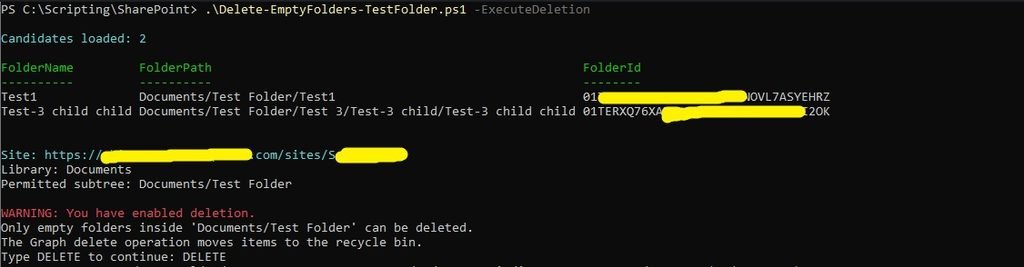
Both scripts use the Microsoft Graph PowerShell module to interact with SharePoint.
Scripts – https://github.com/KiranMaji/sharepoint-empty-folder-cleanup
Important Consideration Before Deletion
The deletion script relies on the results captured during the initial scan.
If someone uploads a file or adds content to a folder after the scan has completed, that folder may still be included in the report and could be deleted by the second script.
For this reason, I recommend:
- Review the scan report carefully before proceeding.
- Run the cleanup during off-hours or a low-activity window.
- Avoid concurrent changes to the targeted folders between scanning and deletion.
- Confirm that the folders listed in the report are safe to remove.
Although deleted SharePoint content can generally be recovered through the recycle bin, recovery should be treated as a fallback—not as a substitute for validating the deletion scope.
💡 Fixr.Cloud Insight
For large SharePoint environments, cleanup should be treated as a controlled maintenance activity rather than a one-time delete operation.
Scan first. Review the report. Delete only after validation.
Separating discovery from deletion provides better visibility and control, especially when working with large document libraries and deeply nested folder structures.
🎯 Bottom Line
This two-script approach helps administrators identify and remove empty SharePoint folders using Microsoft Graph PowerShell while keeping the scan and deletion stages separate.
As always, validate the report and plan the cleanup carefully before running the deletion script.
Fixr.Cloud – Smarter IT, Simplified.