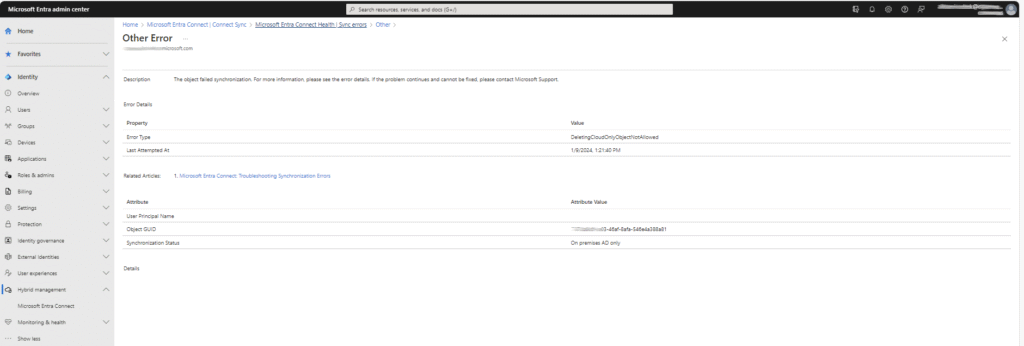
When someone converts some ADSynced accounts to be Cloud Only, and they delete or move the AD account to an un-synced OU, it also deletes the AzureAD/Cloud account. After that, if they recover the AzureAD/Cloud account, the “DeletingCloudOnlyObjectNotAllowed” errors occur.
Microsoft states that if you perform this action, at least two full syncs must be completed, so that the account can be fully purged. Failure to follow this process results in sync errors.
It is worth noting that reviewing these errors in the portal provides very few details, with no UPN, account details, and not even an anchor value. This lack of information can cause confusion.
Follow the steps below to resolve this problem:
Currently, the supported methods are using the AzureAD or Microsoft Graph PowerShell modules. Below is an example using the Graph PowerShell module:
Note: Use PowerShell 7.x to avoid unnecessary errors.
Official link for PowerShell 7.x
1️⃣ Get the ImmutableId
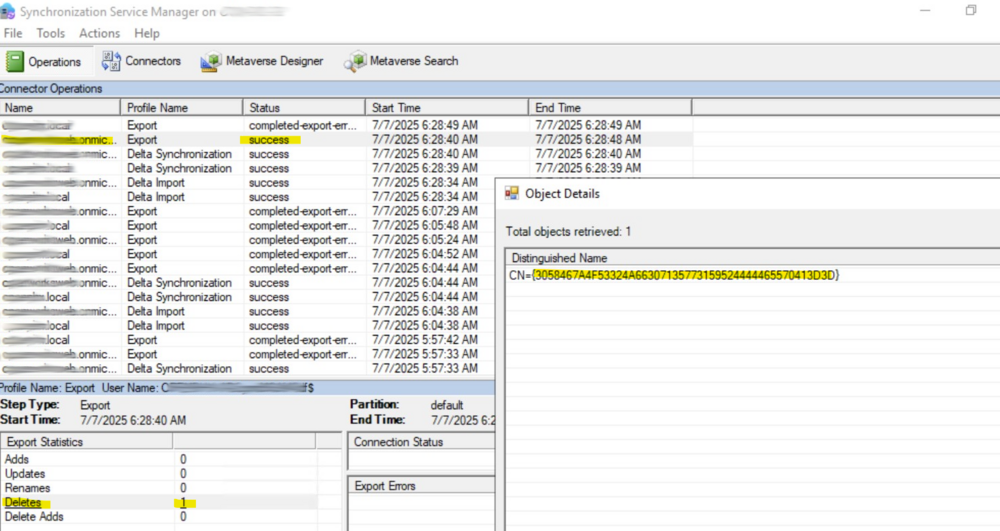
- Open Synchronization Service Manager on your AD Connect server.
- Find the export error → open the details → note the Anchor (that’s the ImmutableId).
2️⃣ Install & Connect
# Install Graph if not already
Install-Module Microsoft.Graph

# Connect
Connect-MgGraph -Scopes User.ReadWrite.All, Directory.AccessAsUser.All
3️⃣ Find the User
Get-MgUser -UserId "<user_id@domain.com>"Note: Change the <user_id@domain.com> with the actual one.
If the UPN or user details are missing, you can identify the user using the source anchor by following the steps below with AzureAD PowerShell cmdlets:
# Connect to Azure AD
Connect-AzureAD

# Replace with the Source Anchor value (ImmutableId - usually base64 encoded)
$sourceAnchor = "<your-ImmutableId>"

# Get user by ImmutableId
Get-AzureADUser -Filter "ImmutableId eq '$sourceAnchor'"
Note: Change the source anchor with the actual one.
4️⃣ Clear ImmutableId
Update-MgUser -UserId "<user_id@domain.com>" -OnPremisesImmutableId $nullNote: Change the <user_id@domain.com> with the actual one.
5️⃣ Force Delta Sync
Log in to the sync server and run delta sync using PowerShell
Start-ADSyncSyncCycle -PolicyType Delta6️⃣ Verify
After the sync:
- Recheck in Synchronization Service Manager → no
export-errorsanymore. - Confirm user sync status in Azure AD.
Note: Even after a successful sync, the error may take some time to clear. If you want to see the results immediately, go to the sync server and open “Synchronization Service Manager” to view the actual status in real time.
Example –
✅ Key Points
- Use
AzureADorMicrosoft.Graph→ notMSOnline. ImmutableIdis nowOnPremisesImmutableIdin Graph.- If
AzureADmodule also stops working, use only Graph → it’s the long-term supported method.