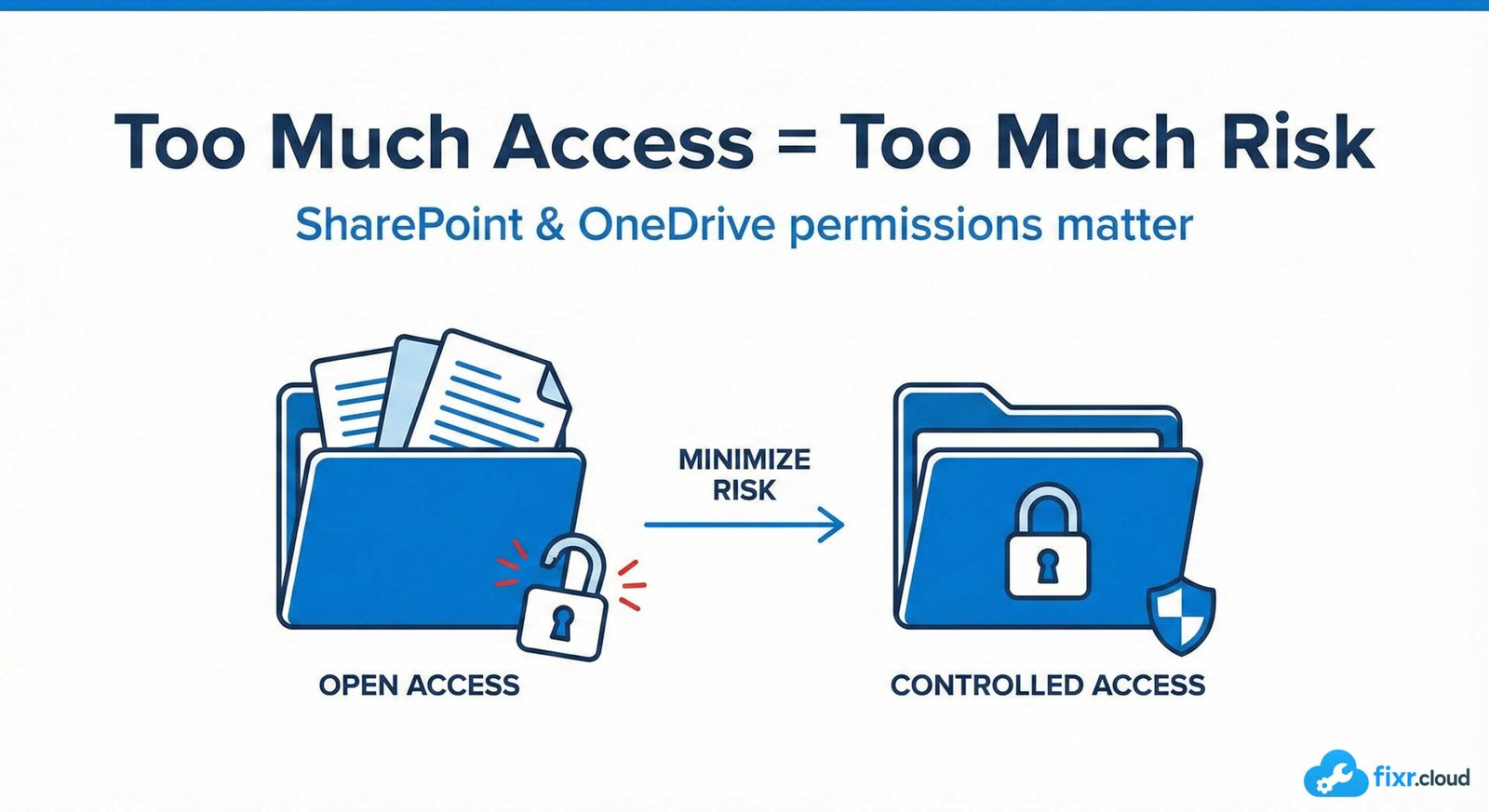
When people talk about Microsoft 365 security, the conversation usually focuses on MFA, Conditional Access, and identity protection.
Those are critical — but they’re not the full picture.
In real environments, I’ve seen more data exposure incidents caused by mismanaged SharePoint and OneDrive permissions than by external attacks.
And the reason is simple:
Sharing is easy. Controlling it requires discipline.
Why Permissions Matter So Much in Microsoft 365
SharePoint and OneDrive are designed for collaboration.
But collaboration without boundaries creates risk.
Common scenarios I encounter:
- Sensitive files shared with “Anyone with the link”
- Former employees still having access
- External users added directly to sites
- Too many site owners
- Permissions broken at folder level without documentation
Over time, access sprawl becomes invisible — until something goes wrong.
Understanding the Permission Model (At a High Level)
1. SharePoint Permission Layers
Permissions can exist at:
- Site level
- Library level
- Folder level
- File level
The deeper you go, the harder it becomes to track access.
2. OneDrive Is Not Private by Default
OneDrive feels personal, but it’s still part of the tenant.
Files can be:
- Shared internally
- Shared externally
- Shared anonymously (if allowed)
Without governance, OneDrive becomes an uncontrolled data-sharing platform.
The Biggest Permission Mistakes I See
1. Breaking Inheritance Everywhere
Breaking inheritance should be the exception — not the default.
When inheritance is broken:
- Visibility drops
- Troubleshooting becomes difficult
- Audits become painful
I always encourage keeping permissions as flat as possible.
2. Too Many Owners
Site owners can:
- Change permissions
- Add users
- Share content externally
More owners = less control.
I prefer:
- Limited, accountable owners
- Clear responsibility
- Periodic access reviews
3. Anonymous Sharing Enabled
Anonymous links are convenient — but risky.
Once shared:
- You lose visibility
- You lose control
- You can’t revoke access easily
For most organizations, anonymous sharing should be disabled or tightly restricted.
4. No Regular Access Reviews
Permissions are not “set and forget.”
People change roles.
Projects end.
External users leave.
Without access reviews, outdated permissions accumulate silently.
My Practical Approach to SharePoint & OneDrive Permissions
1. Start with Tenant-Level Controls
Before touching sites, I review:
- External sharing settings
- Default link types
- Expiration policies
- Guest access controls
This sets the baseline.
2. Use Groups, Not Individuals
Permissions should be assigned to:
- Microsoft 365 groups
- Security groups
Not individuals.
This makes access:
✔ Easier to manage
✔ Easier to audit
✔ Easier to revoke
3. Limit External Sharing
External sharing should be:
- Business-justified
- Time-bound
- Logged
- Reviewed regularly
I also ensure external users are clearly identified.
4. Monitor Sharing Activity
Using audit logs and reports, I keep an eye on:
- New sharing links
- External access changes
- Mass downloads
- Unusual activity
Visibility is key.
5. Educate Users
Technology alone isn’t enough.
I always explain:
- What is safe to share
- What should never be shared
- How to share responsibly
Well-informed users reduce risk significantly.
Why Permissions Are a Security Control — Not Just Admin Work
Permissions directly control:
- Who sees your data
- Who can modify it
- Who can download it
- Who can share it further
That makes permissions a security boundary, not just an administrative task.
Final Thoughts
In Microsoft 365, protecting identity is critical — but protecting data access is just as important.
Clean permission design, limited sharing, and regular reviews go a long way in preventing data exposure.
This is the kind of practical Microsoft 365 governance guidance I share on
Fixr.Cloud — Smarter IT, Simplified.