Multi-Factor Authentication (MFA) is one of the strongest security controls available.
But attackers know this — and they’ve adapted.
One of the most effective methods they now use is the MFA fatigue attack.
In a fatigue attack, the attacker sends a flood of MFA prompts to the victim’s device.
Eventually, many users click “Approve” by mistake or out of frustration.
Over the past few years, I’ve seen this tactic become extremely common.
The good news is that it’s easy to defend against — if you configure MFA correctly.
What Is an MFA Fatigue Attack?
An MFA fatigue attack works like this:
- Attacker gets the user’s password
- Attacker repeatedly attempts to sign in
- The user gets dozens of MFA alerts
- Eventually the user approves a prompt just to stop the notifications
- Attacker gains full access to the account
This bypasses MFA without breaking it — it exploits human behavior instead.
Why MFA Fatigue Works So Well
1. People Trust Notifications
Many users assume:
“If MFA is asking me, it must be me.”
This is a dangerous assumption.
2. Users Get Annoyed or Distracted
When the notification spam begins, it’s easy for a user to tap “Allow” automatically.
3. Attackers Perform Attacks at Night
Users approve prompts half asleep.
4. Notifications Give No Context
Older MFA methods only show:
- “Approve or Deny”
No details.
No context.
No origin.
Easy to trick.
How to Stop MFA Fatigue Attacks
Here’s what I set up in every environment I manage.
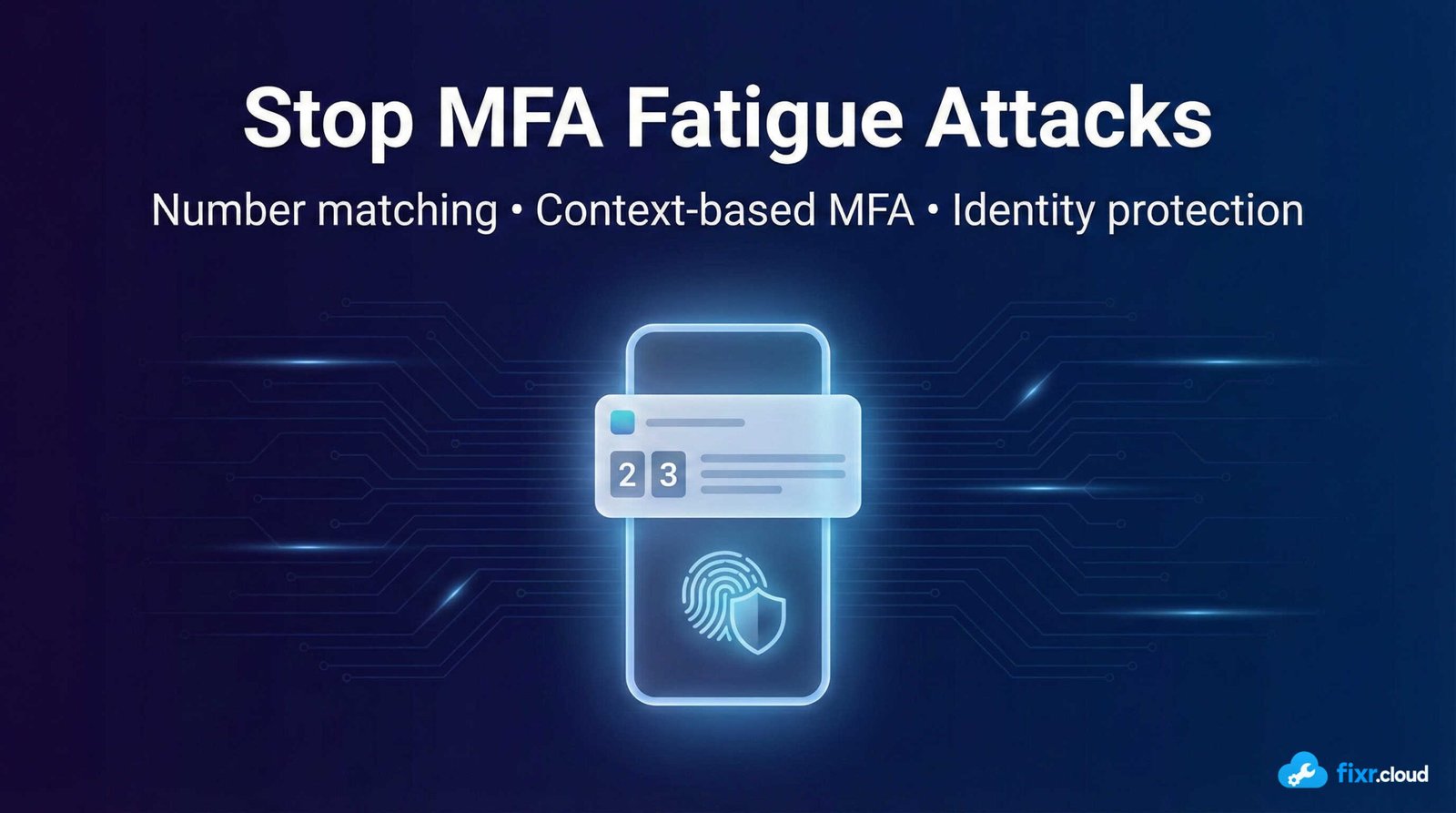
1. Use Number Matching (Mandatory)
Number matching requires the user to enter a code displayed on the login screen.
This stops:
✔ Blind approvals
✔ Accidental approvals
✔ Fatigue-driven approvals
In my experience, this single change eliminates 80–90% of MFA fatigue risks.
2. Block Basic “Approve/Deny” Push Notifications
Push notifications without context are risky.
Replace them with:
- Number matching
- Contextual MFA
- FIDO2 keys
- Authenticator codes
This forces user verification.
3. Enable Location & App Context
Modern MFA can show:
- Sign-in location
- App being accessed
- OS and device
- Approximate IP
This helps users understand what they’re approving.
4. Use Conditional Access to Reduce MFA Frequency
Examples:
- Require MFA only on untrusted devices
- Skip MFA on compliant, managed devices
- Block risky sign-ins automatically
This reduces unnecessary MFA prompts.
5. Enable Entra ID Protection
Identity Protection can detect:
- Unusual login attempts
- Impossible travel
- Suspicious MFA prompts
- Risky user behavior
These signals help block attacks early.
6. Monitor for Repeated MFA Prompts
Some red flags:
- Dozens of MFA prompts
- MFA attempts during late hours
- Repeated failed approvals
- Sign-in attempts from unusual locations
These require immediate investigation.
7. Educate Users
Users need to know:
- Never approve unexpected prompts
- Report MFA spam immediately
- Review sign-in alerts
- Understand number matching
Better awareness = fewer compromises.
Common Mistakes That Increase MFA Risk
❌ Relying only on push notifications
❌ Not enforcing number matching
❌ Weak Conditional Access rules
❌ Allowing legacy authentication
❌ No monitoring for MFA spam
❌ Too frequent MFA challenges
Each of these makes MFA easier to bypass.
Final Thoughts
MFA fatigue attacks are rising quickly — not because MFA is weak, but because attackers target the human side of authentication.
With the right configuration, you can stop these attacks easily.
Number matching, Conditional Access, and identity protection tools make MFA resilient and difficult to bypass.
This is the kind of practical security insight I share at Fixr.Cloud — Smarter IT, Simplified.