Identity security gets most of the attention in Microsoft 365 — and for good reason.
But there’s another equally important layer that is often ignored: device compliance.
In the environments I manage, enforcing device compliance has become a standard requirement. It’s one of the simplest ways to reduce risk and ensure only secure, healthy devices can access corporate data.
Let’s explore why device compliance is such a critical part of a modern Microsoft 365 security strategy.
What Is Device Compliance?
Device compliance means a device meets the minimum security requirements defined by the organization.
Using Microsoft Intune, you can enforce rules such as:
- Disk encryption must be enabled
- OS must be up to date
- Antivirus must be active
- TPM must be present
- Rooting/jailbreak not allowed
- Defender must be running
- Firewall enabled
- Minimum OS version required
Devices that meet these requirements become “compliant” — and can be granted access to corporate apps and data.
Why Device Compliance Matters
1. Prevents Risky Devices from Accessing Data
If a device is:
- Outdated
- Unencrypted
- Missing patches
- Running outdated Defender signatures
- Or compromised
Then it’s a risk — no matter who is logged in.
Compliance ensures users can’t access data from insecure devices.
2. Essential for Zero Trust Architecture
Zero Trust is built on three pillars:
- Strong identity
- Secure device
- Contextual access controls
Identity alone is not enough.
A device with malware can compromise even the strongest MFA.
3. Stops Lateral Movement and Credential Theft
Attackers often target:
- Weak endpoints
- Unpatched devices
- Personal laptops
- Devices without encryption
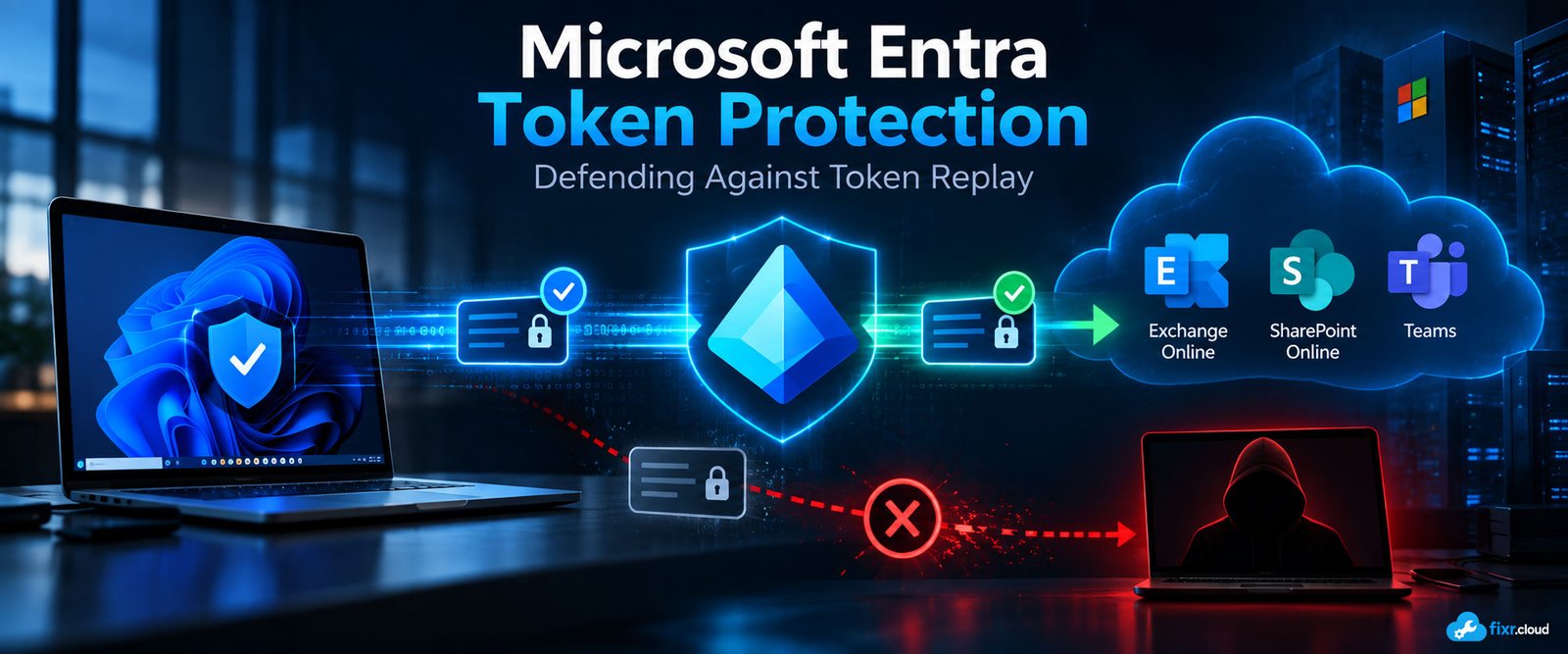
Once compromised, those devices can steal sessions, tokens, or cached credentials.
Compliance significantly reduces that risk.
4. Works Perfectly with Conditional Access
One of the most powerful policies in Microsoft 365 is:
“Require device to be marked as compliant.”
This ensures:
- Only Intune-managed devices
- With correct security settings
- And healthy configurations
…can access Microsoft 365 apps.
This is one of the strongest overall protections you can implement.
5. Handles Both Corporate and BYOD Scenarios
The beauty of device compliance is that it adapts to both models:
✔ Corporate devices → full Intune management + compliance
✔ BYOD devices → App Protection Policies + limited access
You gain security without hurting the user experience.
How I Implement Device Compliance in Real Environments
1. Create a Baseline Compliance Policy
I always include:
- Require BitLocker
- Require secure boot
- Require Defender or approved AV
- Block jailbroken/rooted devices
- Minimum OS version
- Real-time protection required
2. Combine It With Conditional Access
Best-practice policies:
- Block access from non-compliant devices
- Require MFA for compliant devices
- Block legacy authentication
- Restrict SharePoint/OneDrive downloads on unmanaged devices
3. Use Device Filters and Dynamic Groups
These help target:
- Windows devices
- macOS devices
- Android/iOS
- Hybrid joined vs. Azure AD joined
4. Maintain Security Baselines
Microsoft provides pre-built baselines for:
- Windows
- Edge
- Defender
- Intune security baseline
These improve your compliance strength automatically.
5. Monitor compliance reports regularly
I check:
- Compliance trends
- Devices falling behind
- OS version gaps
- Non-compliant device reasons
- Risky device alerts
This keeps the environment healthy.
Final Thoughts
Device compliance is not just a technical feature — it’s a foundational security requirement.
It ensures that users access Microsoft 365 only from secure and healthy endpoints, reducing risk significantly.
In my experience, enforcing compliance is one of the fastest and most effective ways to strengthen security with minimal disruption to users.
This is the kind of practical M365 guidance I share at Fixr.Cloud — Smarter IT, Simplified.