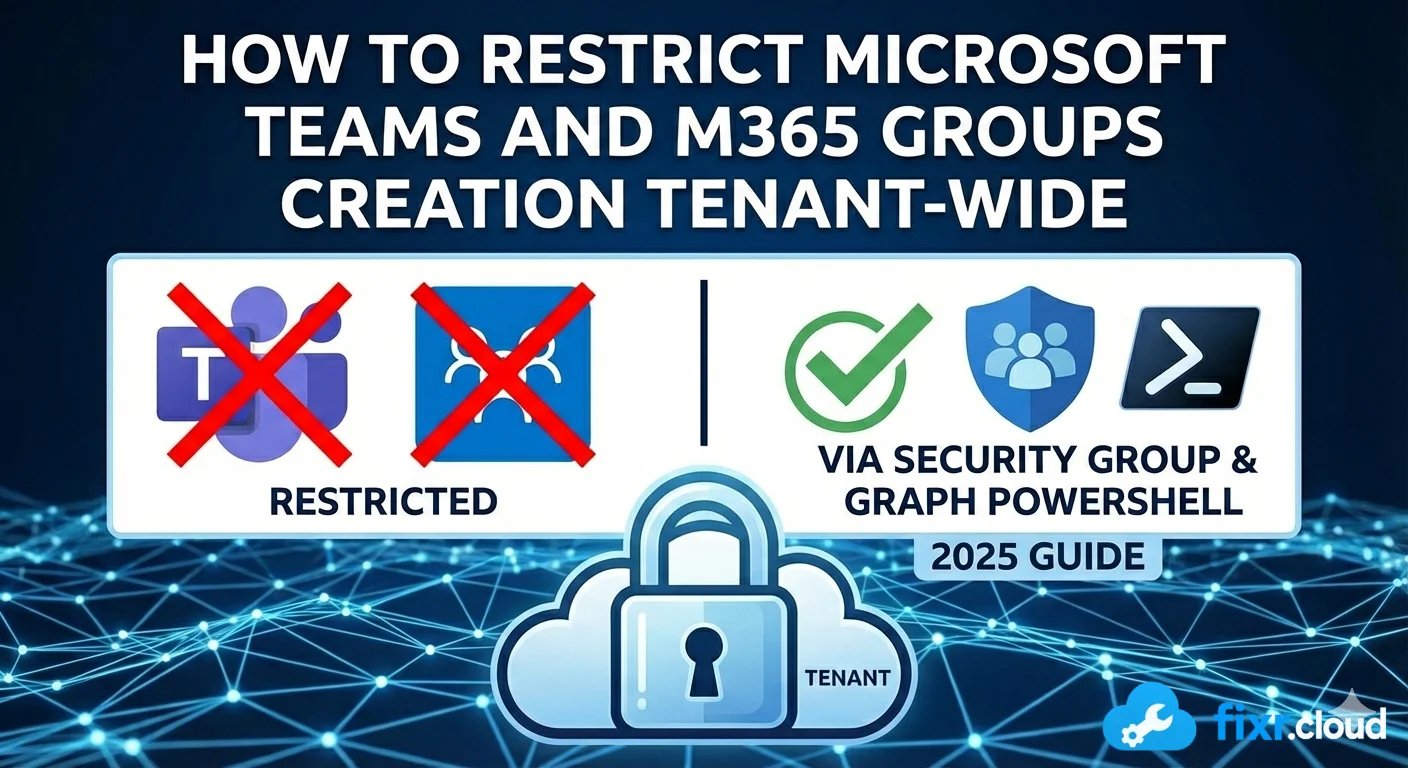
The best method to restrict Microsoft Teams and Microsoft 365 Group creation tenant-wide is:
✔️ Create a Security Group
✔️ Allow ONLY that group to create M365 Groups
✔️ Apply restriction using Graph PowerShell
Below is the full step-by-step guide, updated for 2025, using Microsoft Graph PowerShell (modern and recommended).
Goal
Restrict ALL users from creating:
- Microsoft 365 Groups
- Microsoft Teams (because Teams requires an M365 group)
Only members of a specific Security Group will have permission.
🔧 STEP 1 — Create a Security Group
(You can also use an existing one)
Portal
- Go to Azure Portal → Microsoft Entra ID (Aka Azure Active Directory)
- Groups > New Group
- Group type: Security
- Name: “Allowed M365 Group Creators” (recommended)
- Membership type: Assigned
- Add the users/admins who should be able to create Teams/M365 Groups.
IMPORTANT:
If you use dynamic or Microsoft 365 type groups, it will NOT work. Must be Security Group → Assigned.
🔧 STEP 2 — Install & Connect to Microsoft Graph
Open PowerShell 7.x and run:
-- Install required modules --

#Install the Microsoft Graph cmdlets.
Install-Module Microsoft.Graph -Scope AllUsers

#Install the Microsoft Graph beta cmdlets.
Install-Module Microsoft.Graph.Beta -Scope AllUsers

# Connect with required scopes
Connect-MgGraph -Scopes "Directory.ReadWrite.All", "Group.ReadWrite.All"
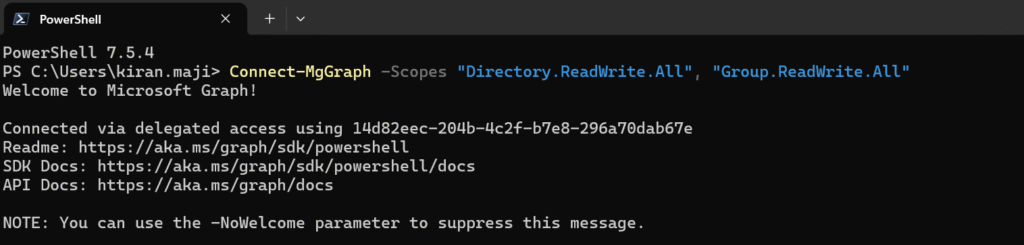
Sign in using a Global Admin or Privileged Role Admin.
🔧 STEP 3 — Get the Security Group Object ID
Replace the group name with the one you created:
$group = Get-MgGroup -Filter "DisplayName eq 'Allowed M365 Group Creators'"
$group.Id
Copy the Object ID output.
🔧 STEP 4 — Create the Directory Setting Template
M365 uses a hidden “Group.Unified” setting.
We need to create a tenant setting using that template.
Run:
#Get the directory settings template
$template = Get-MgBetaDirectorySetting | where-object {$_.displayname -eq 'Group.unified'}
$template.Values


#Creating a new directory setting object
$SettingTemplate = Get-MgBetaDirectorySettingTemplate | where {$_.DisplayName -eq 'Group.Unified'}

New-MgBetaDirectorySetting -TemplateId $SettingTemplate.Id

🔧 STEP 5 — Configure Group Creation Restriction
We will set:
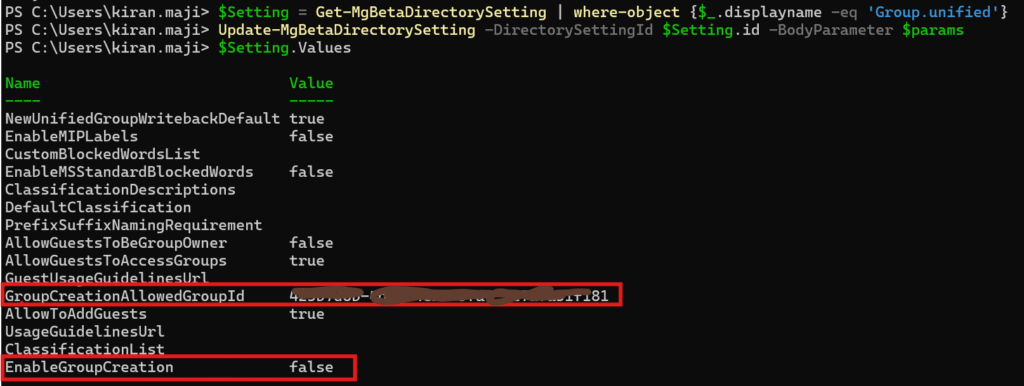
- EnableGroupCreation = false
- GroupCreationAllowedGroupId = <your security group id>
Replace <your_group_id> with the ID from Step 3.
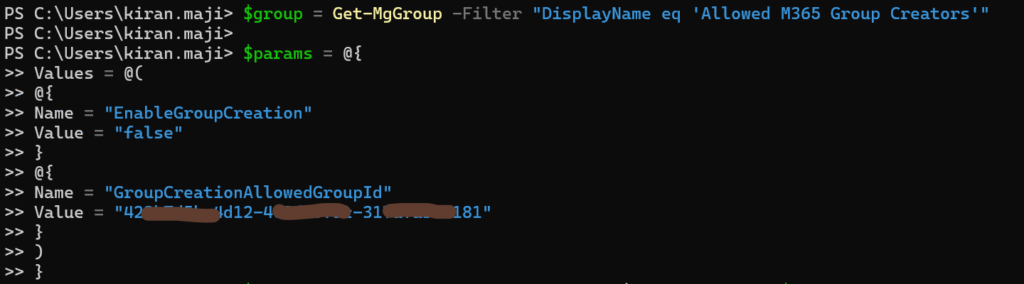
$group = Get-MgGroup -Filter "DisplayName eq 'Allowed M365 Group Creators'"

$params = @{
	Values = @(
		@{
			Name = "EnableGroupCreation"
			Value = "false"
		}
		@{
			Name = "GroupCreationAllowedGroupId"
			Value = "<your_group_id>"
		}
		)
}


$Setting = Get-MgBetaDirectorySetting | where-object {$_.displayname -eq 'Group.unified'}
Update-MgBetaDirectorySetting -DirectorySettingId $Setting.id -BodyParameter $params
🔄 STEP 6 — To Re-Enable Group/Teams Creation Later
You can delete the setting:
Get-MgBetaDirectorySetting | Where-Object {$_.DisplayName -eq "Group.Unified"} | `
    Remove-MgBetaDirectorySetting
Or set EnableGroupCreation = true.
🚨 Important Notes
✔️ Teams creation is now restricted
Teams creation fails for users NOT in the security group.
✔️ Outlook, Planner, Viva Engage group creation is restricted too
Those apps cannot create groups anymore.
✔️ Existing groups continue working
Only new creation is blocked.