

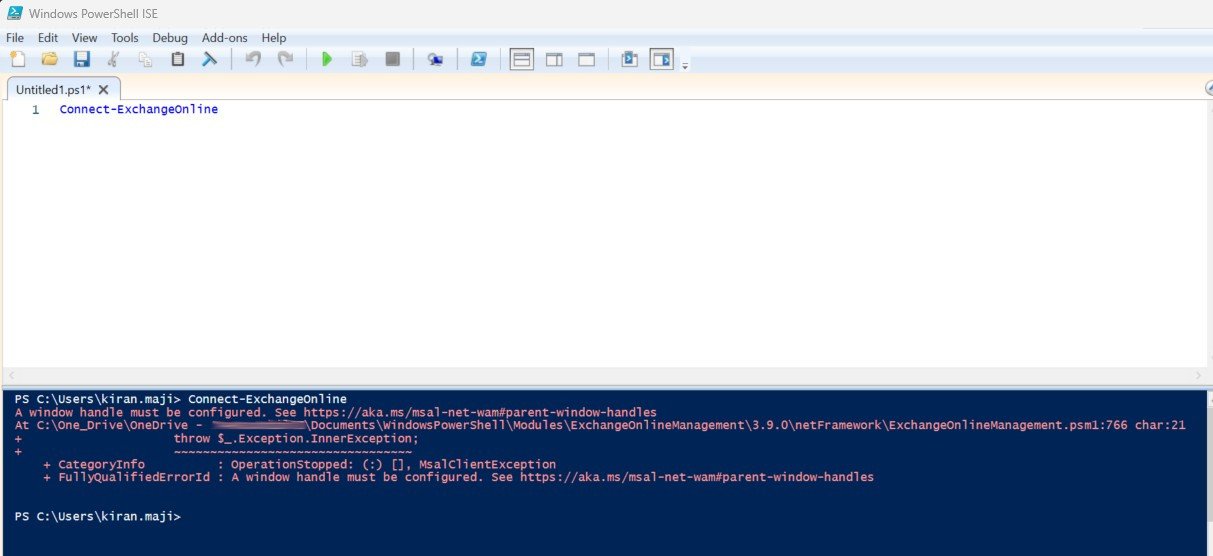
While using Exchange Online Management PowerShell cmdlets, you may encounter the following error:
A window handle must be configured.
See https://aka.ms/msal-net-wam#parent-window-handles
This issue started appearing with module version 3.7.0 (and continues in 3.7.1 and later), after Microsoft introduced a change in the authentication flow:
Integrated Web Account Manager (WAM) was added to improve authentication security and consistency across Microsoft apps.
However, this change introduced a new behavior — the error typically occurs when you run the cmdlets in PowerShell ISE or within any Windows-based applications (such as a WinForms app) that attempt to execute the Connect-ExchangeOnline command.
In contrast, you won’t see this issue when using regular PowerShell (console or terminal), as it properly supports the new WAM-based authentication flow.
Why This Error Occurs
The error appears because Microsoft has made a well-intentioned design decision that any interactive login prompt must have a parent window handle.
This ensures that the authentication dialog box doesn’t open behind another window — which could otherwise make it invisible to the user and cause confusion. This behavior is enforced by the MSAL (Microsoft Authentication Library), which powers modern authentication in Microsoft 365 and Azure applications.
The issue continues to persist in ExchangeOnlineManagement version 3.7.1, which raises concern that Microsoft may not be planning to address this behavior anytime soon.
🔧 Workaround 1: Downgrade the Module
In the meantime, you can uninstall the latest version of the Exchange Online Management module and roll back to version 3.6.0, which doesn’t exhibit this issue.
Run the following commands in PowerShell:
Uninstall-Module -Name ExchangeOnlineManagement -AllVersions -Force
Install-Module -Name ExchangeOnlineManagement -RequiredVersion 3.6.0 -Force
This reverts the module to a stable version where the authentication prompt works normally without requiring a window handle.
🪟 Workaround 2: Open a Console Window
Another option is to open a console window within PowerShell ISE or your Windows application before initiating the connection.
This method allows the authentication dialog to attach to a valid window handle — effectively bypassing the error.
However, it’s not an ideal approach since it temporarily opens a console window in the background.
You can use the following PowerShell snippet to allocate a console dynamically, connect to Exchange Online, and then release it once done:
$consoleSupportSource = @'
using System;
using System.Runtime.InteropServices;
public class ConsoleSupportMethods
{
    [DllImport("kernel32.dll", SetLastError = true)]
    public static extern int AllocConsole();

    [DllImport("kernel32.dll", SetLastError = true)]
    public static extern int FreeConsole();
}
'@

Add-Type -TypeDefinition $consoleSupportSource

try {
    [ConsoleSupportMethods]::AllocConsole()
    Connect-ExchangeOnline
}
catch {
    throw
}
finally {
    [ConsoleSupportMethods]::FreeConsole()
}
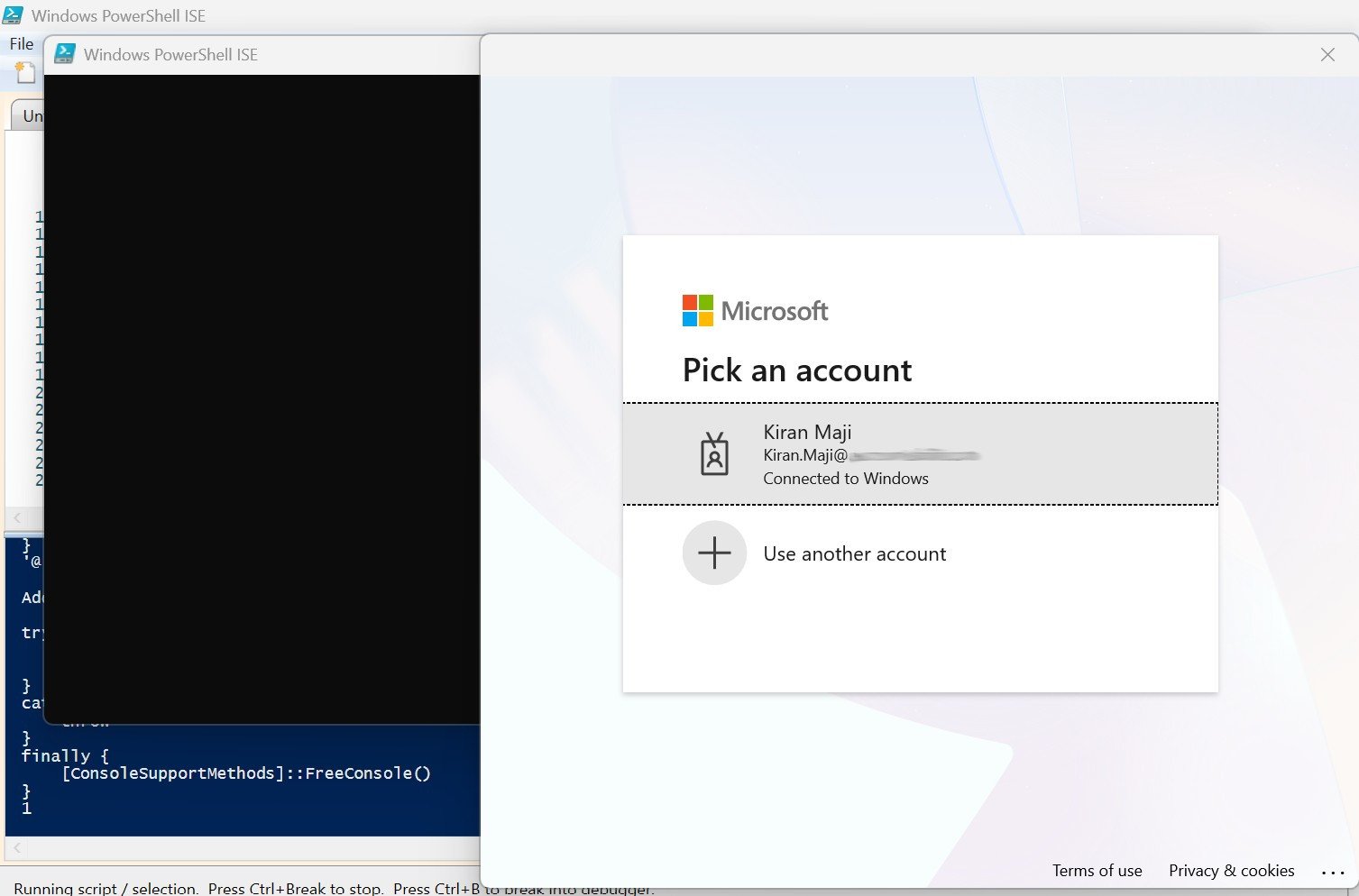
This workaround ensures that the authentication prompt has a parent window, preventing the “A window handle must be configured” error while still allowing the connection to proceed successfully.
🔐 Workaround 3: Handle MSAL Authentication Manually
The most reliable and future-proof solution is to handle the MSAL authentication process yourself and then pass an access token directly to Connect-ExchangeOnline.
While the Exchange module simplifies connectivity, it comes with its own quirks — the backend essentially operates through a custom REST API that maps PowerShell cmdlet names. This design means you’re somewhat tied to the Exchange cmdlets, but by handling authentication independently, you can avoid relying on their built-in authentication logic.
🧠 How It Works
This approach leverages the MSAL (Microsoft Authentication Library) assemblies that are already installed as part of the Exchange Online Management module, so there’s no need to install MSAL separately.
Here’s a working PowerShell example:
$msalPath = [System.IO.Path]::GetDirectoryName((Get-Module ExchangeOnlineManagement).Path);
Add-Type -Path "$msalPath\Microsoft.IdentityModel.Abstractions.dll";
Add-Type -Path "$msalPath\Microsoft.Identity.Client.dll";
[Microsoft.Identity.Client.IPublicClientApplication] $application = [Microsoft.Identity.Client.PublicClientApplicationBuilder]::Create("fb78d390-0c51-40cd-8e17-fdbfab77341b").WithDefaultRedirectUri().Build();
$result = $application.AcquireTokenInteractive([string[]]"https://outlook.office365.com/.default").ExecuteAsync().Result;
Connect-ExchangeOnline -AccessToken $result.AccessToken -UserPrincipalName $result.Account.Username; 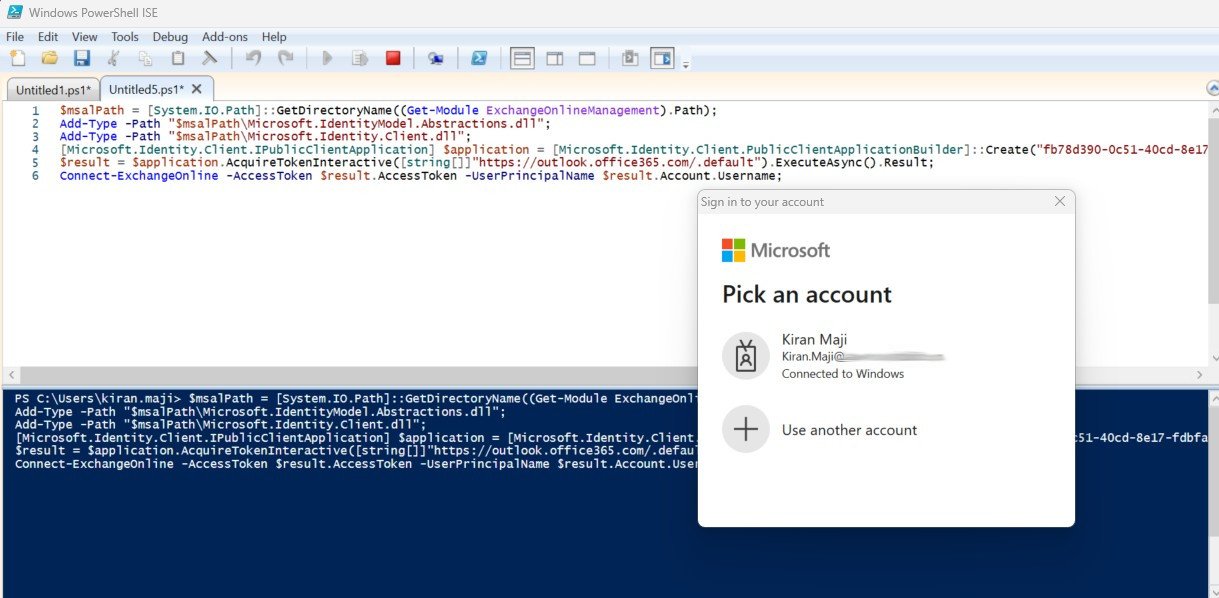
This method gives you full control over the authentication flow, ensures compatibility with future module updates, and eliminates dependency on the module’s internal (and sometimes problematic) sign-in behavior.



Hello,
It works for me and that’s great.
But I want to know if Microsoft has changed some things to avoid this problem?
I like to work with Powershell ISE and I don’t want change.
Thank you for that.
It does sound a bit awkward, but the reality is that using older or legacy versions and not updating the modules is sometimes required. However, each update typically introduces new approaches and more future-ready features. Hopefully, Microsoft will address this more effectively in the future.
Thanks.